How to enable the Rapid Access App for a site
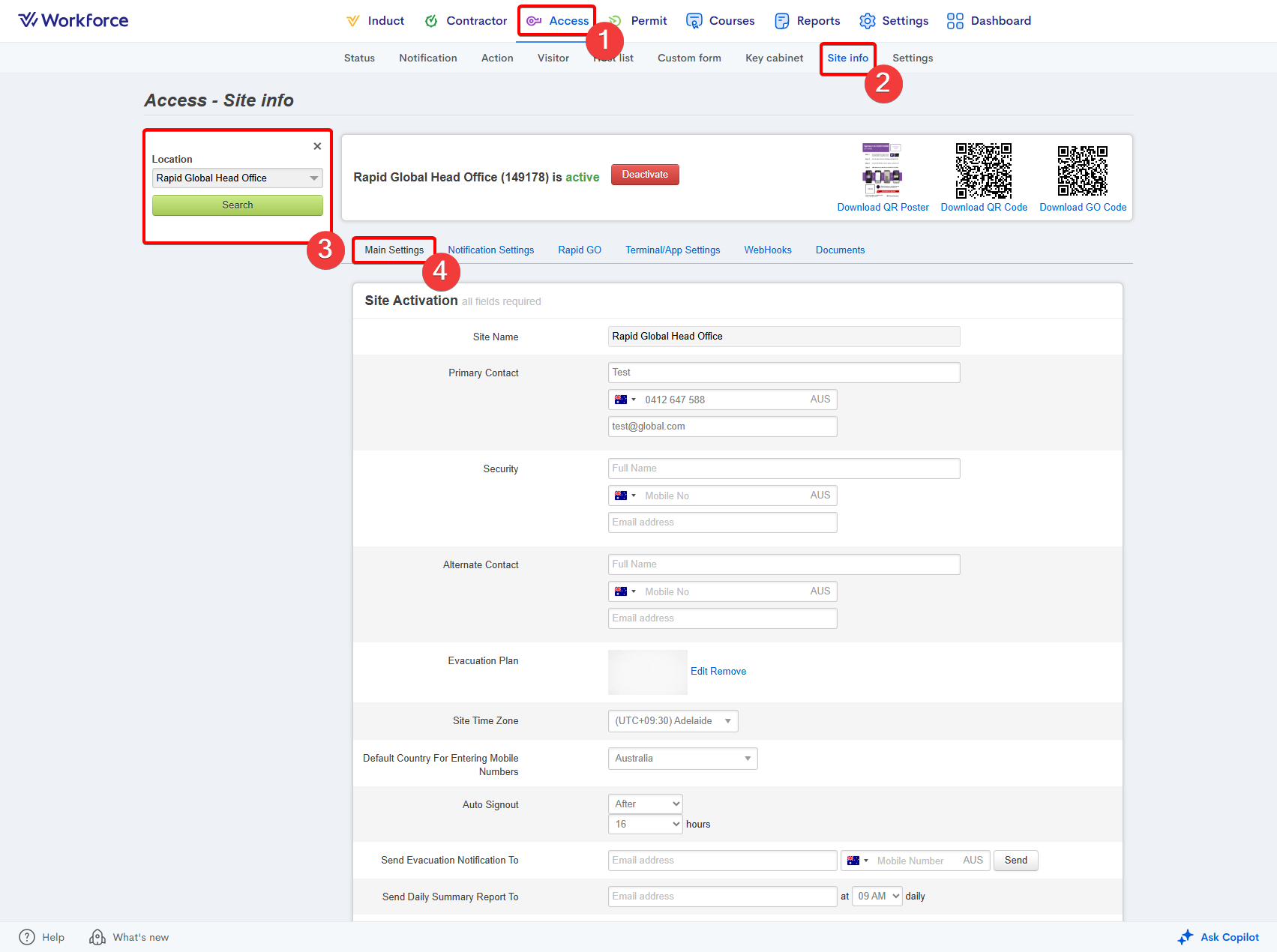
- Go to the Access module.
- Enter the Site Info area.
- Select your site using the Location dropdown.
- Stay within the Main Settings tab:
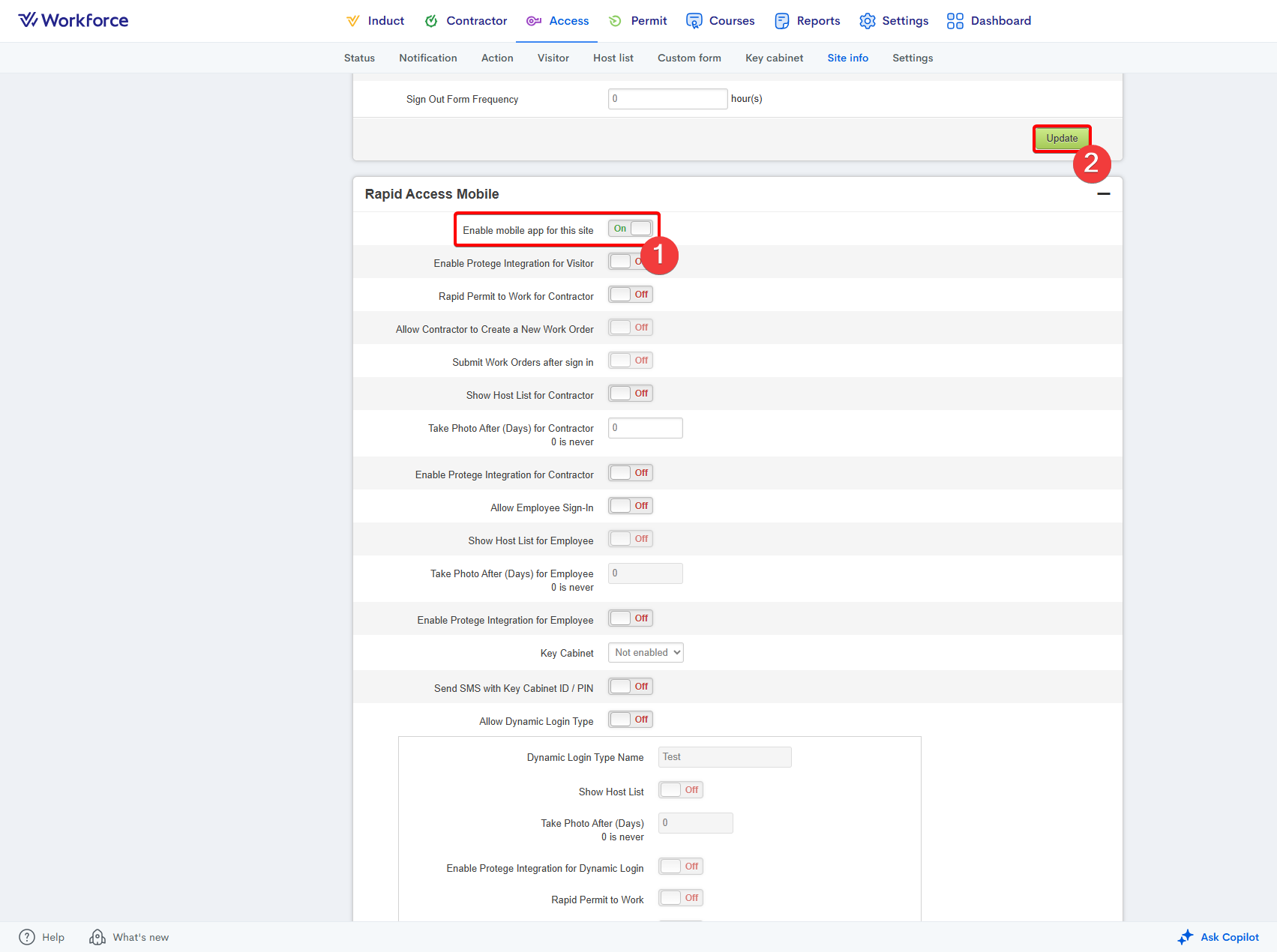
- Scroll down to the Rapid Access Mobile section.
- Enable the Enable Mobile App for This Site option.
- Press the Update button:
Related Articles
How to activate a site in Rapid Access
After you have created your site within the Settings module in the MyRapid Administrator portal, you must activate the site within Access to be able to enable a sign-in system for your site. Please not that this does NOT automatically enable the ...
How to set up the Rapid Access app
Go to your mobile's app store. Download the Rapid Access app: Open the Rapid Access app. Enter the last name and mobile number associated with your trainee profile. Tick the agreement box. Press the Find Me button: Enter the 6-digit verification code ...
How to enable and configure Rapid GO for a site
Rapid GO must be enabled and configured. Enabling Rapid GO allows the QR code to be used, after which you can customise the workflow settings to control who can sign in and what they see during the sign‑in process. Enabling Rapid GO for a site: Go to ...
Rapid Terminal App Setup Guide (iPad)
This guide provides step-by-step instructions for setting up the Rapid Terminal application on an iPad. What's required for this setup? You need to be an administrator in the Rapid Global System Rapid Access 'Edit' permissions need to be applied to ...
How to sign in to a site as a visitor using a Rapid GO QR code
Before you start: Ensure you have a Rapid GO QR code nearby to scan. Ensure the camera on your mobile phone is functional. Ensure you have a stable network connection. Scanning the Rapid GO QR code: Open your camera app. Point your phone’s camera at ...