How to adjust the validity of a permit
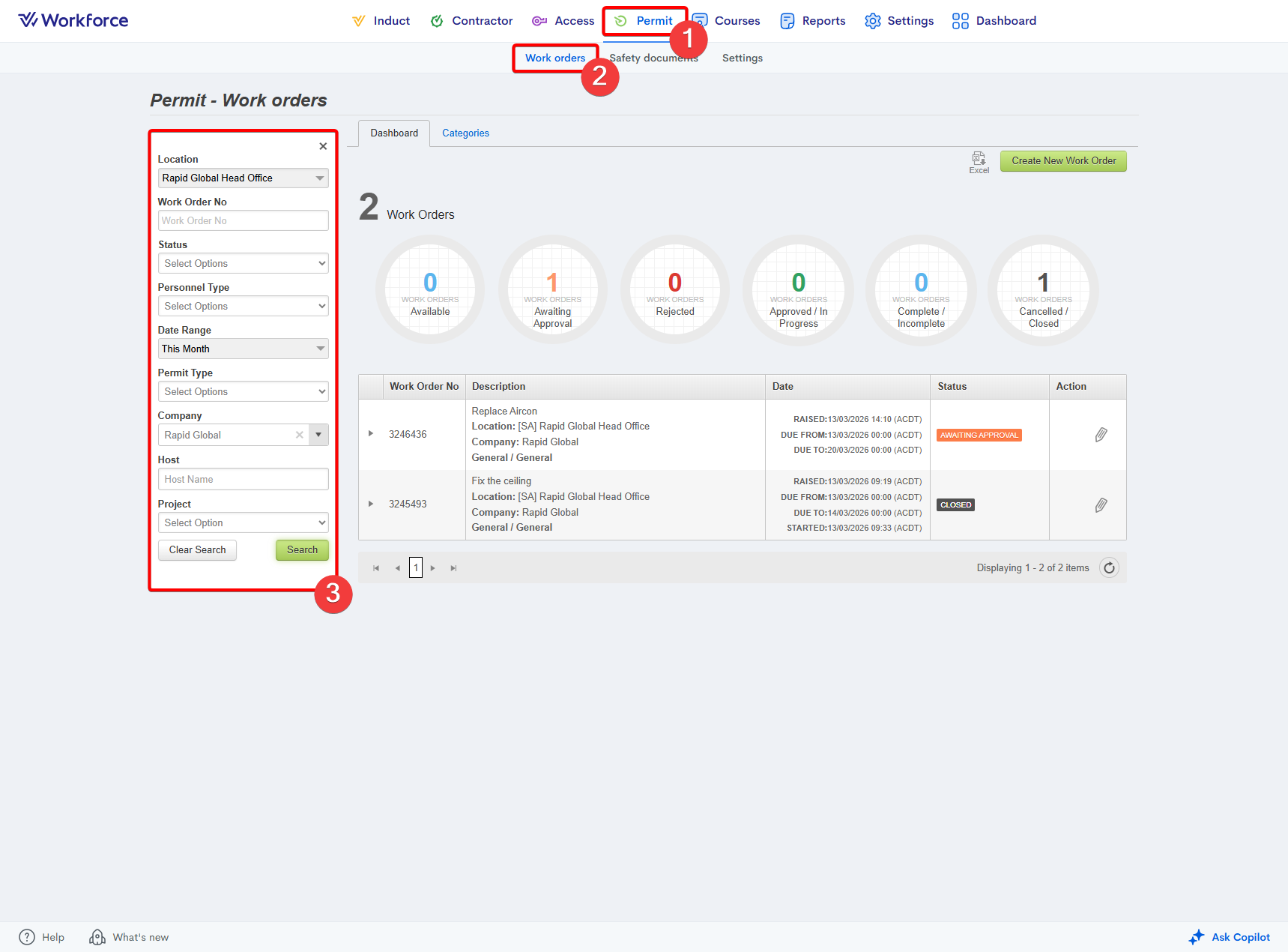
- Go to the Permit module.
- Enter the Work Orders tab.
- Locate the work order using the filters on the left-hand side of the page. Ensure you press Search to apply the filters:
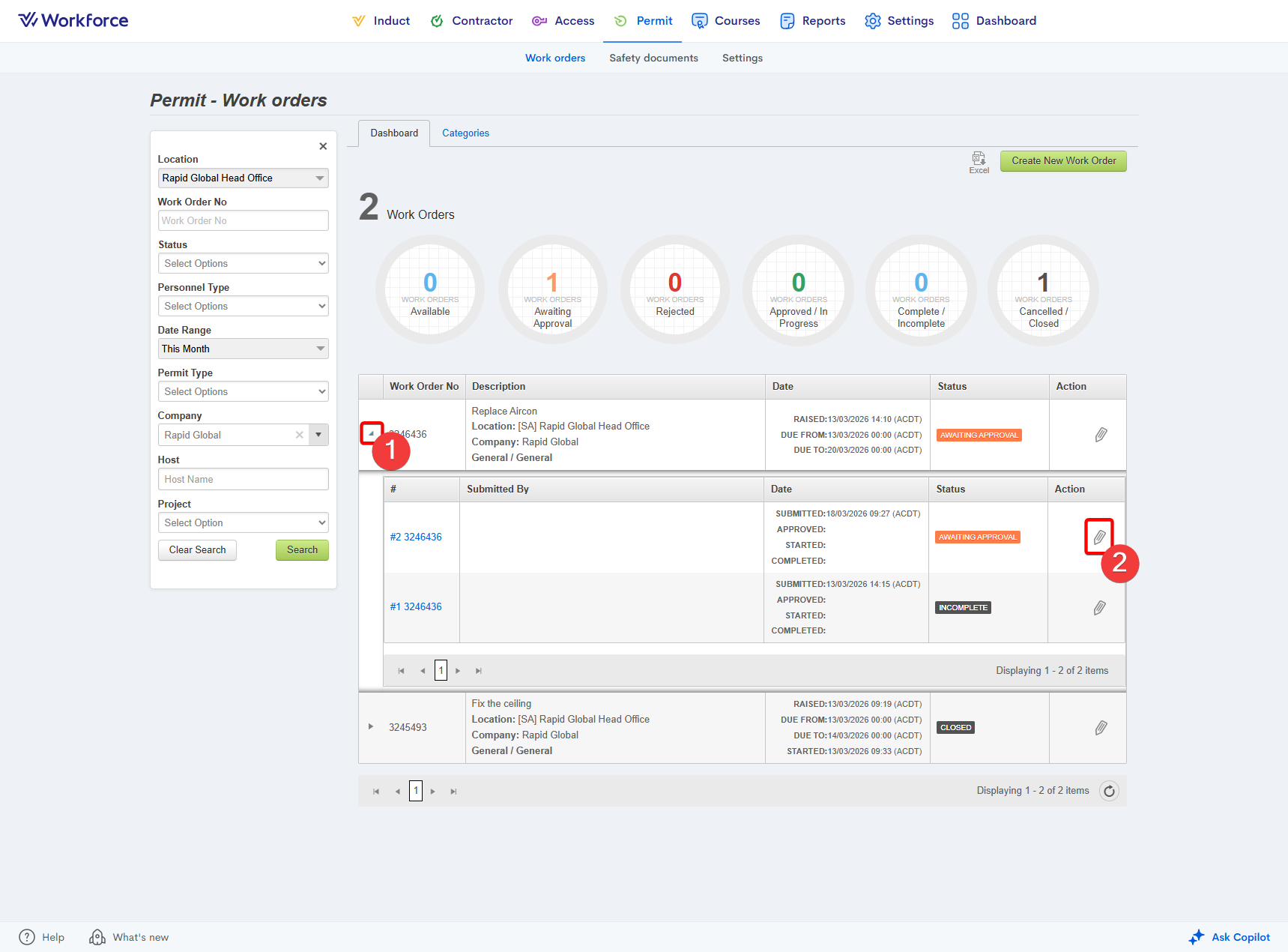
- Press the right-pointing arrow to the left of the Work Order No.
- Press the Pencil icon to the right of the entry you wish to view:
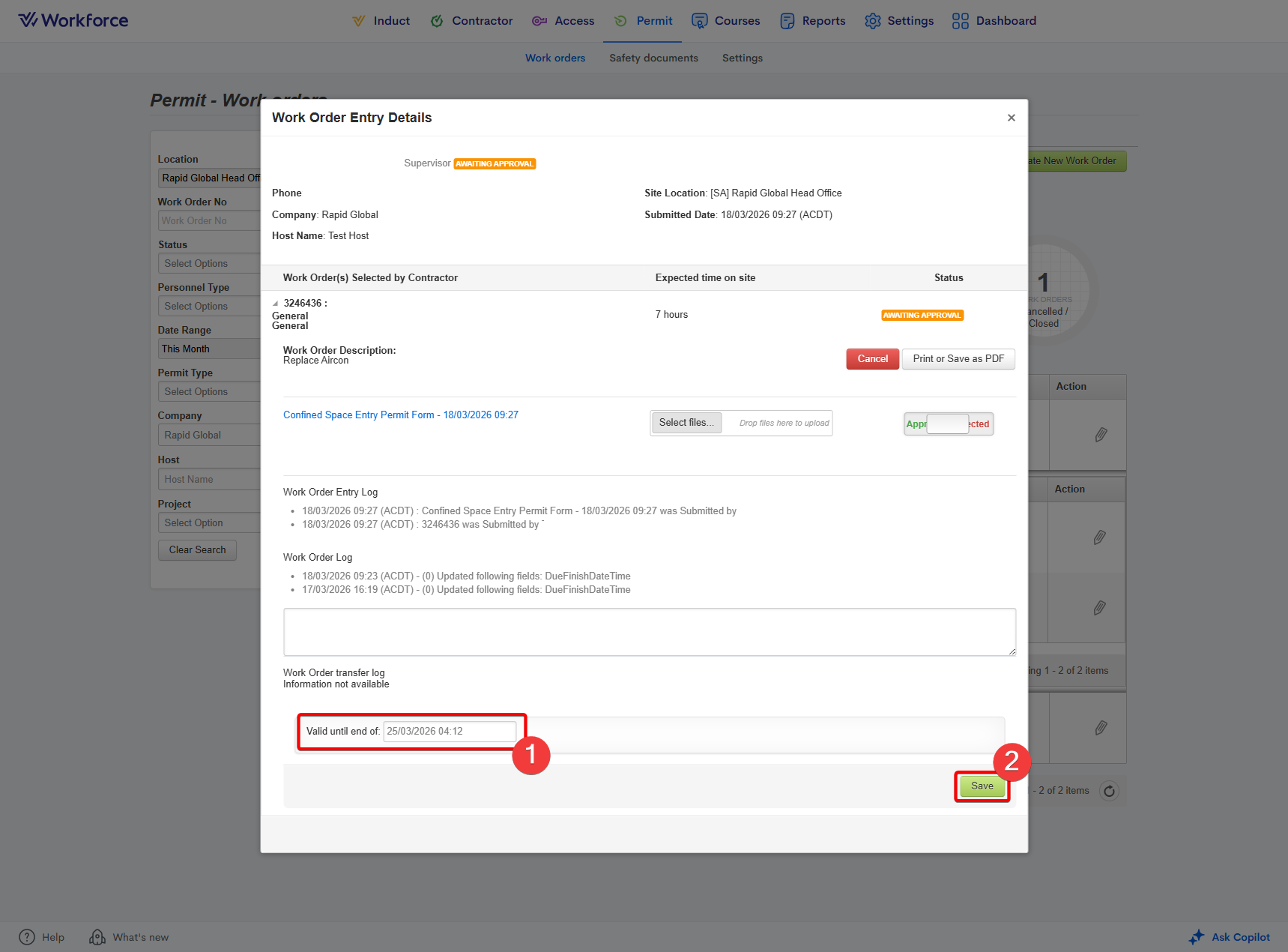
- Scroll down to the bottom of the popup.
- Adjust the validity date within the Valid until end of field.
- Press the Save button:
Related Articles
How to create a work order as an administrator
Go to the Permit module. Enter the Work Orders section. Press the Create New Work Order button: Enter the work order's details within the popup. Press Create once the mandatory fields have been populated: Please note: The following fields are ...
How to create a work order as a contractor administrator
Sign into your MyRapid account at https://my.rapidglobal.com/account/sign-in Press the Contracting company administrator / B2B tile within the sign-in options: Press the relevant Client Portal tile: Dropdown the Company tab on the left-hand side. ...
How to set up work order notifications
Within Access, site settings can be configured to automatically notify permit approvers when specific work order–related events occur onsite. Go to the Access module. Select the Site Info section. Enter the Notification Settings area. Press the Add ...
How to change the due finish date for a work order
Go to the Permit module. Enter the Work Orders tab. Locate the work order using the filters on the left-hand side. Ensure you press Search to apply the filters. Press the Pencil icon within the Action column on the right of the page: Within the Due ...
How to change the due start date for a work order
Go to the Permit module. Enter the Work Orders tab. Locate the work order using the filters on the left-hand side. Ensure you press Search to apply the filters. Press the Pencil icon within the Action column on the right of the page: Within the Due ...