How to submit a work order in the Contractor Administrator Portal
- Sign into your MyRapid account at https://my.rapidglobal.com/account/sign-in
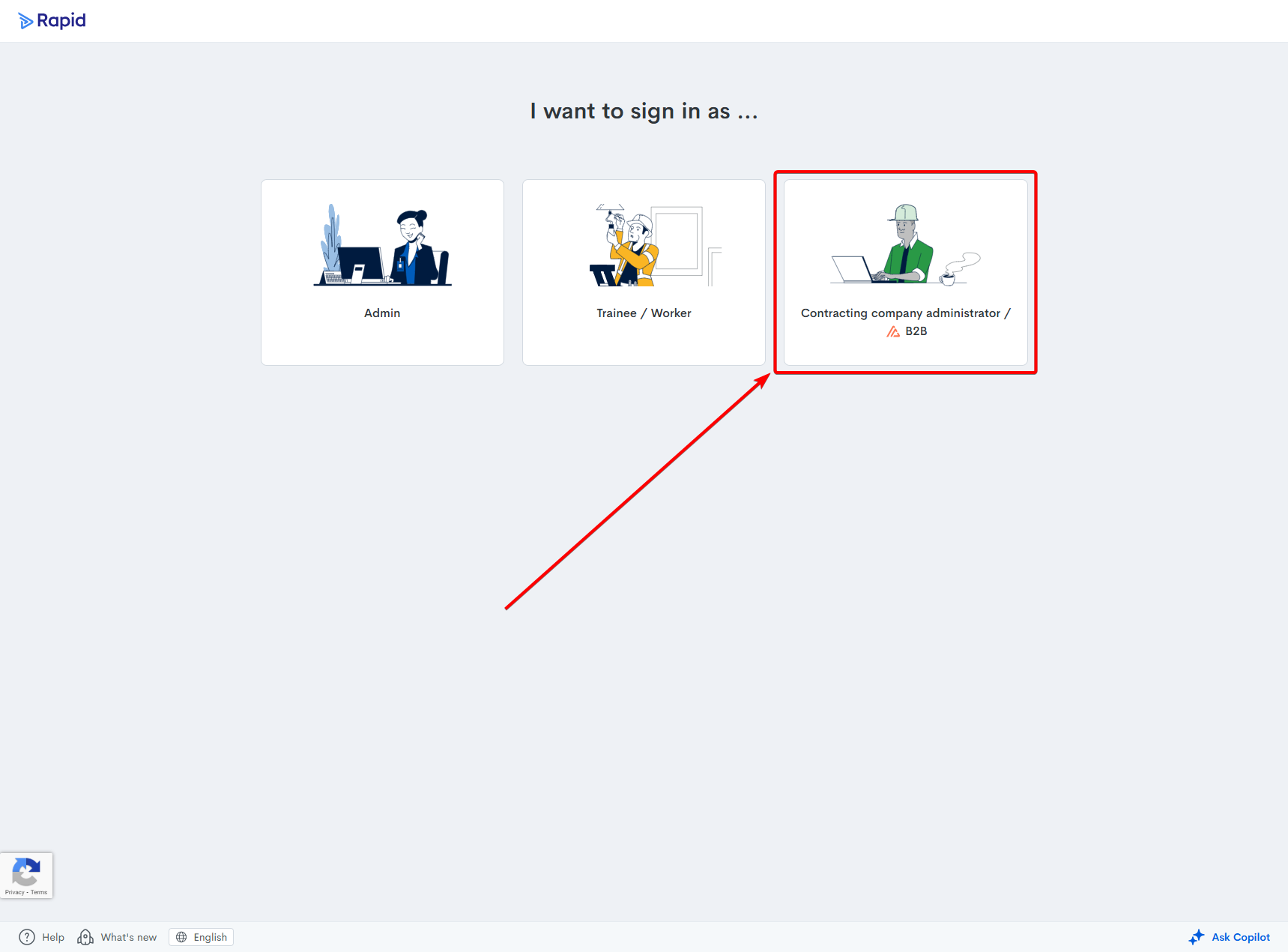
- Press the Contracting company administrator / B2B tile within the sign-in options:
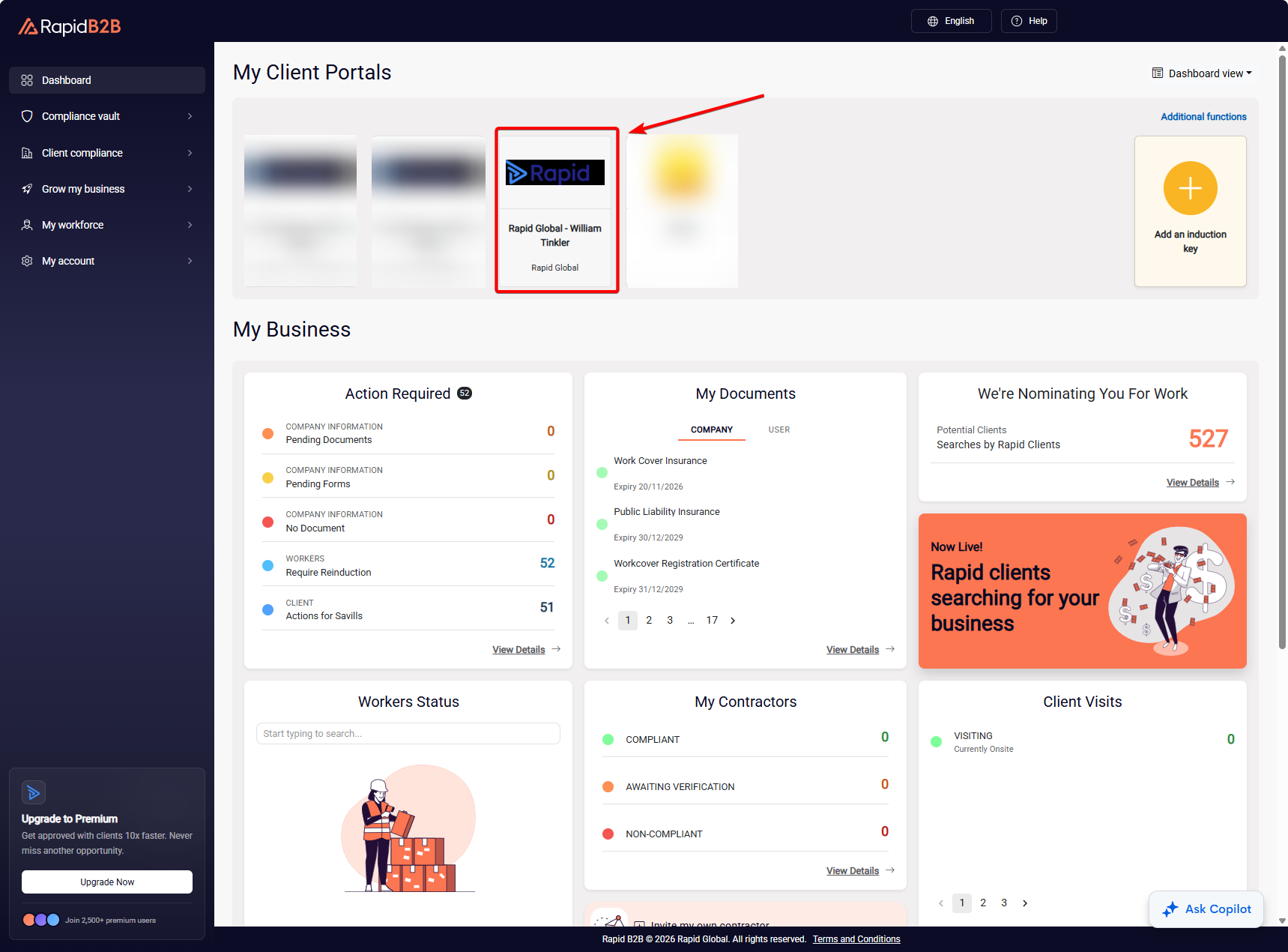
- Press the relevant Client Portal tile:
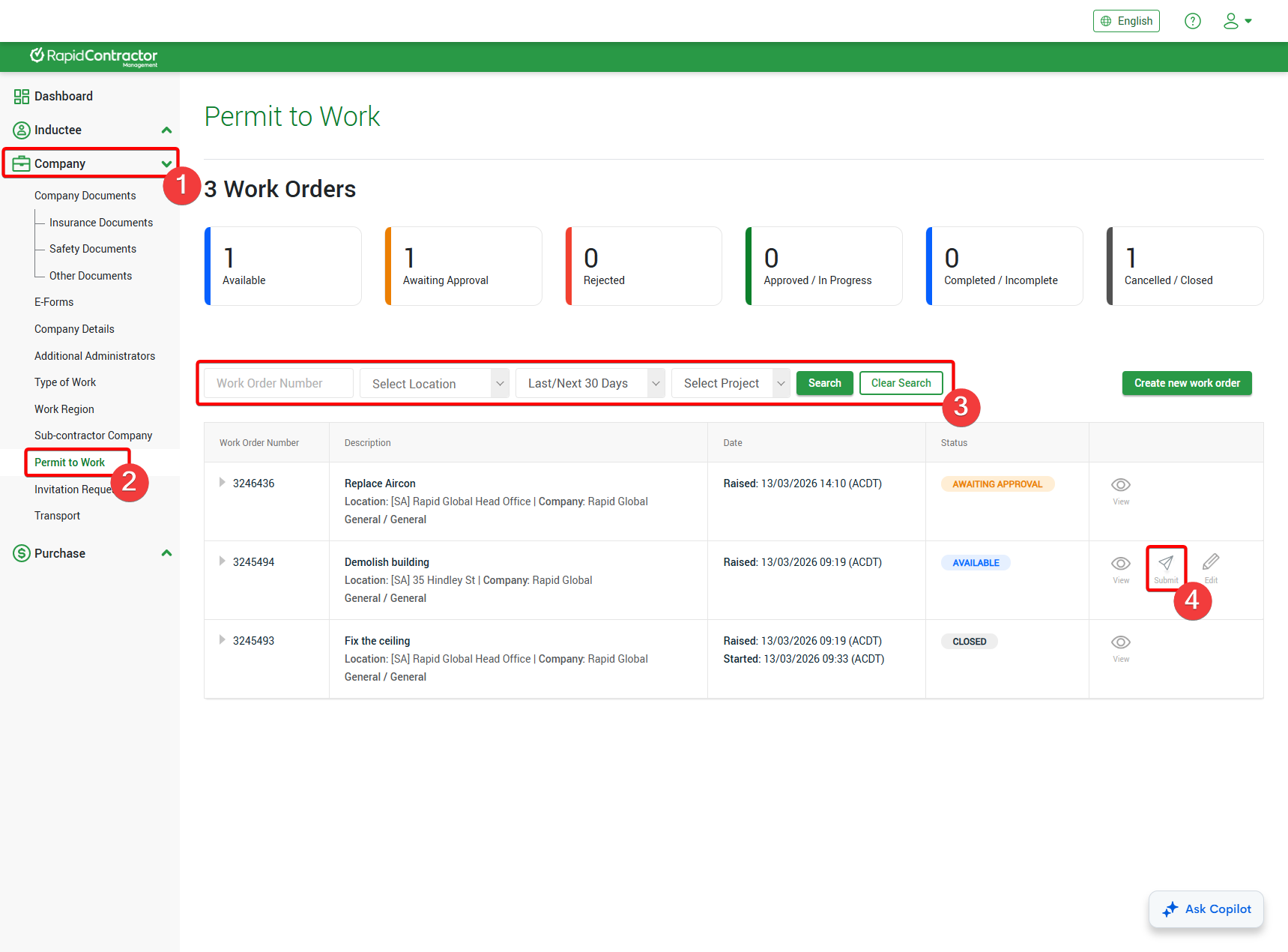
- Dropdown the Company tab on the left-hand side.
- Select the Permit to Work option:
- Locate the work order using the filters just above the table.
- Press the Submit button to the right of the work order:
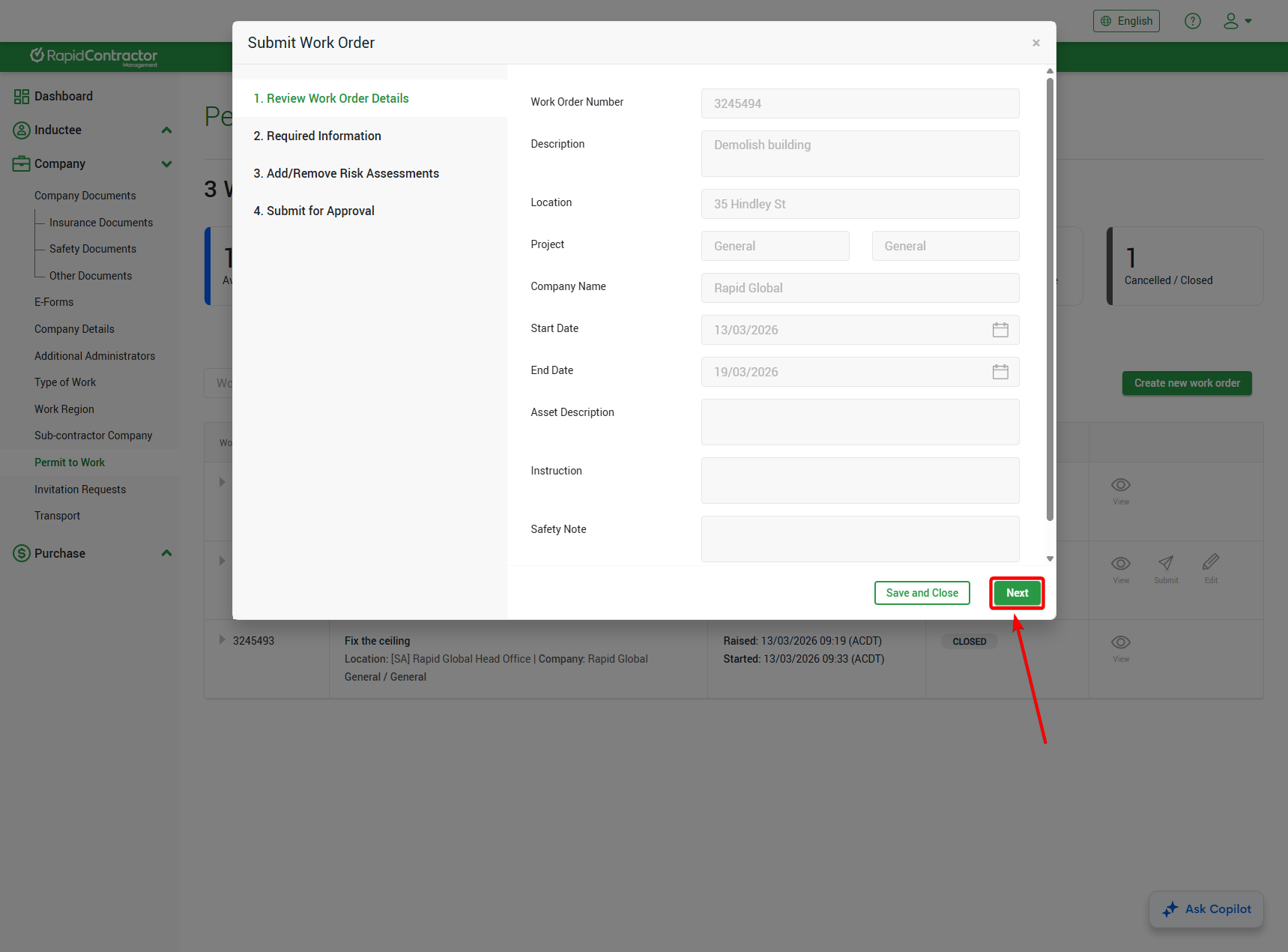
- In 1. Review Work Order Details, review the details are correct and relevant to the work you're completing. If any changes need to the details on this page, please reach out to client contact to assist in updating these.
- Press Next to proceed to the next page:
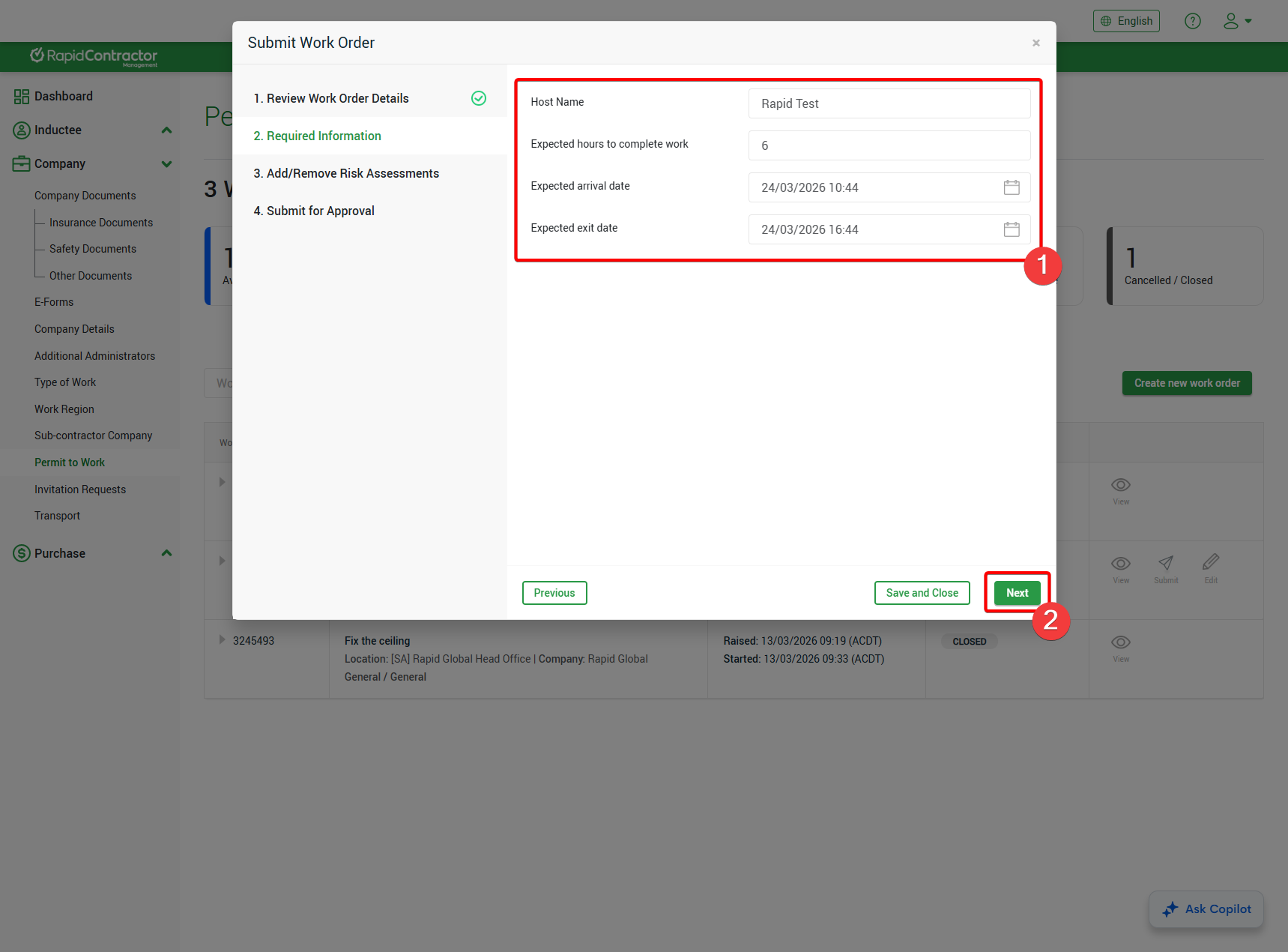
- In 2. Required Information, fill out the information in relation to the work you're undertaking. Please reach out to your client contact if you do not know who to select as host.
- Press Next to proceed to the next page:
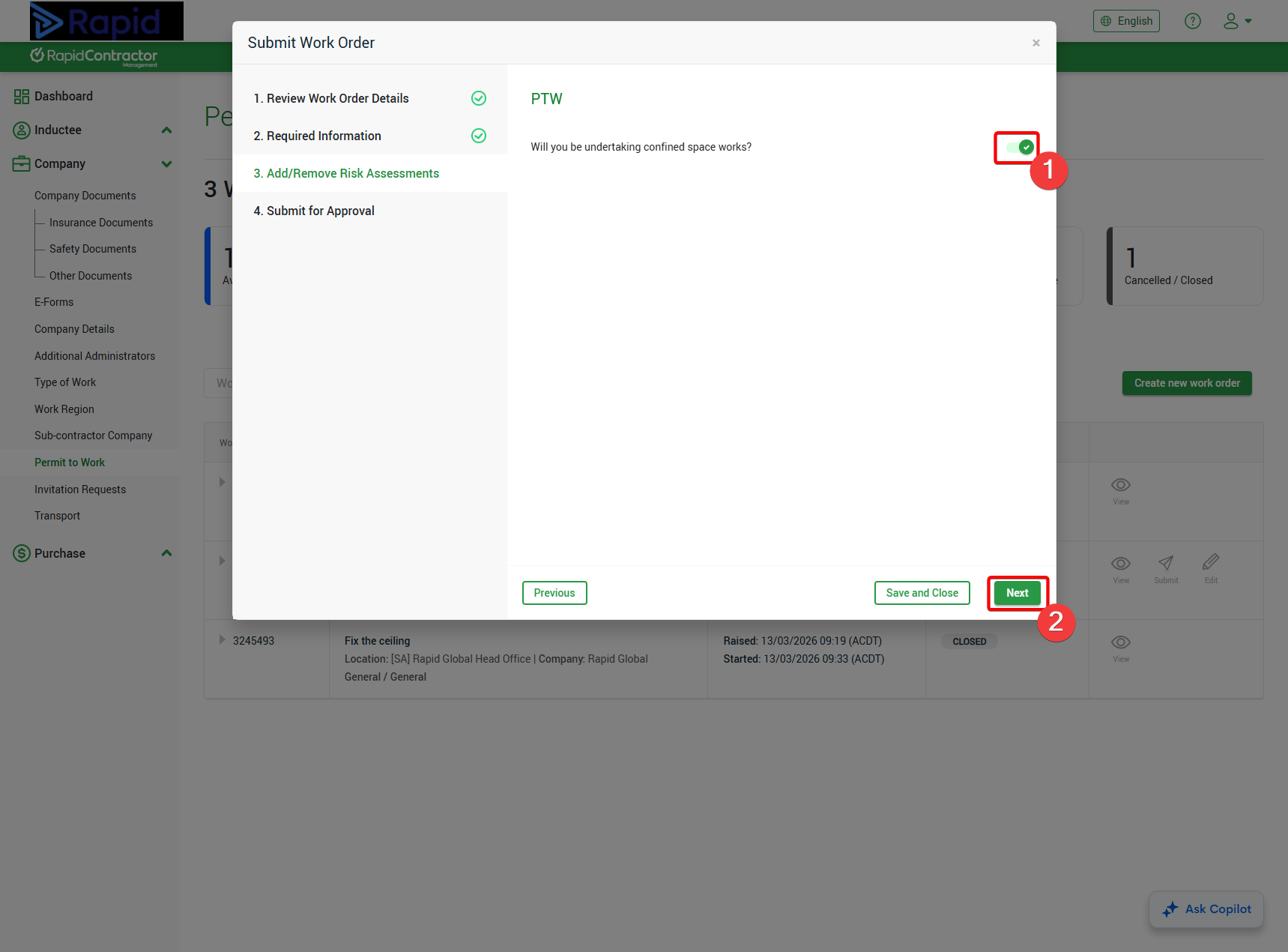
- In 3. Add/Remove Risk Assessments, use the toggle to select the type of high-risk works you are undertaking onsite.
- Press Next to proceed to the next page:
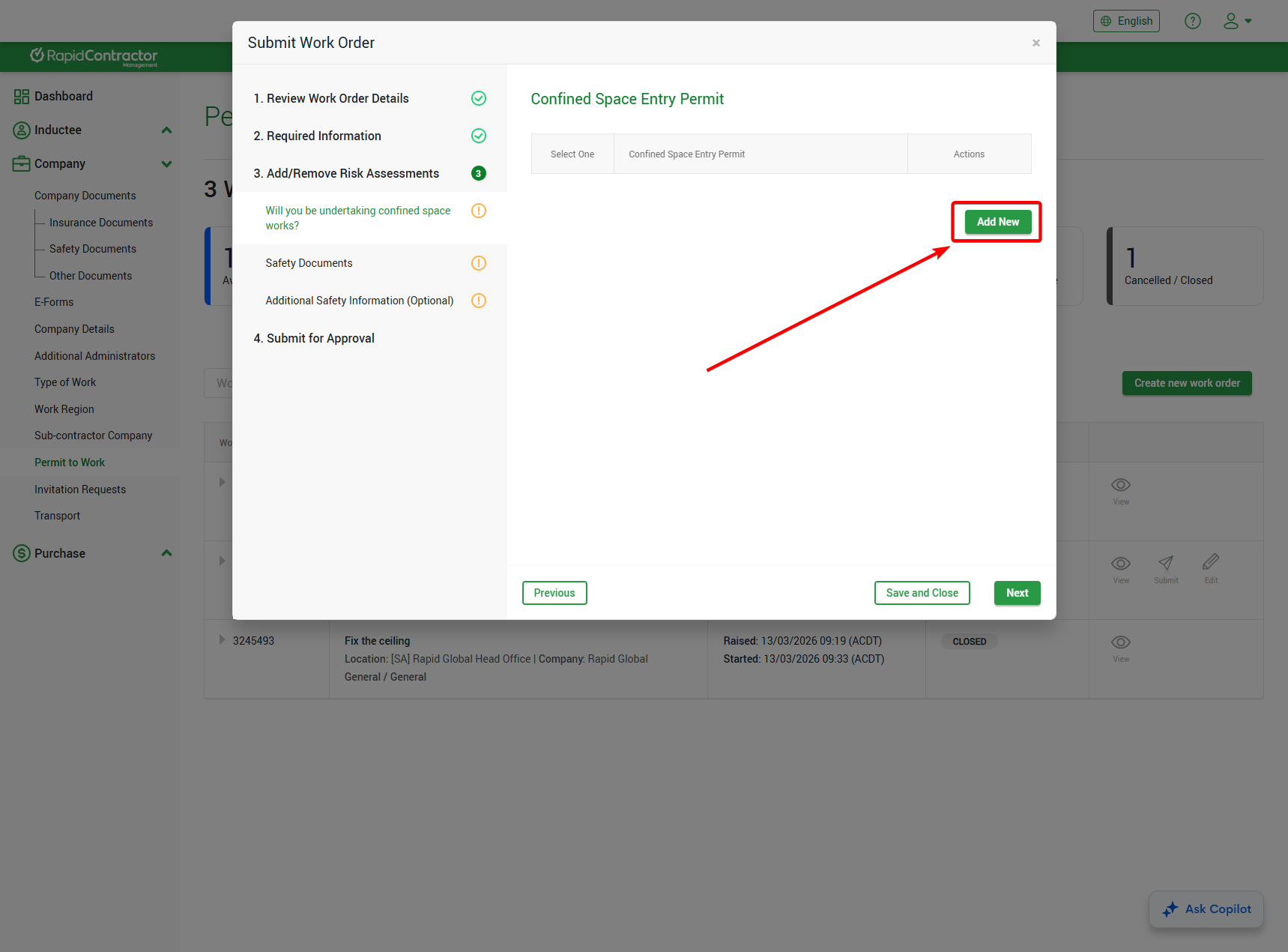
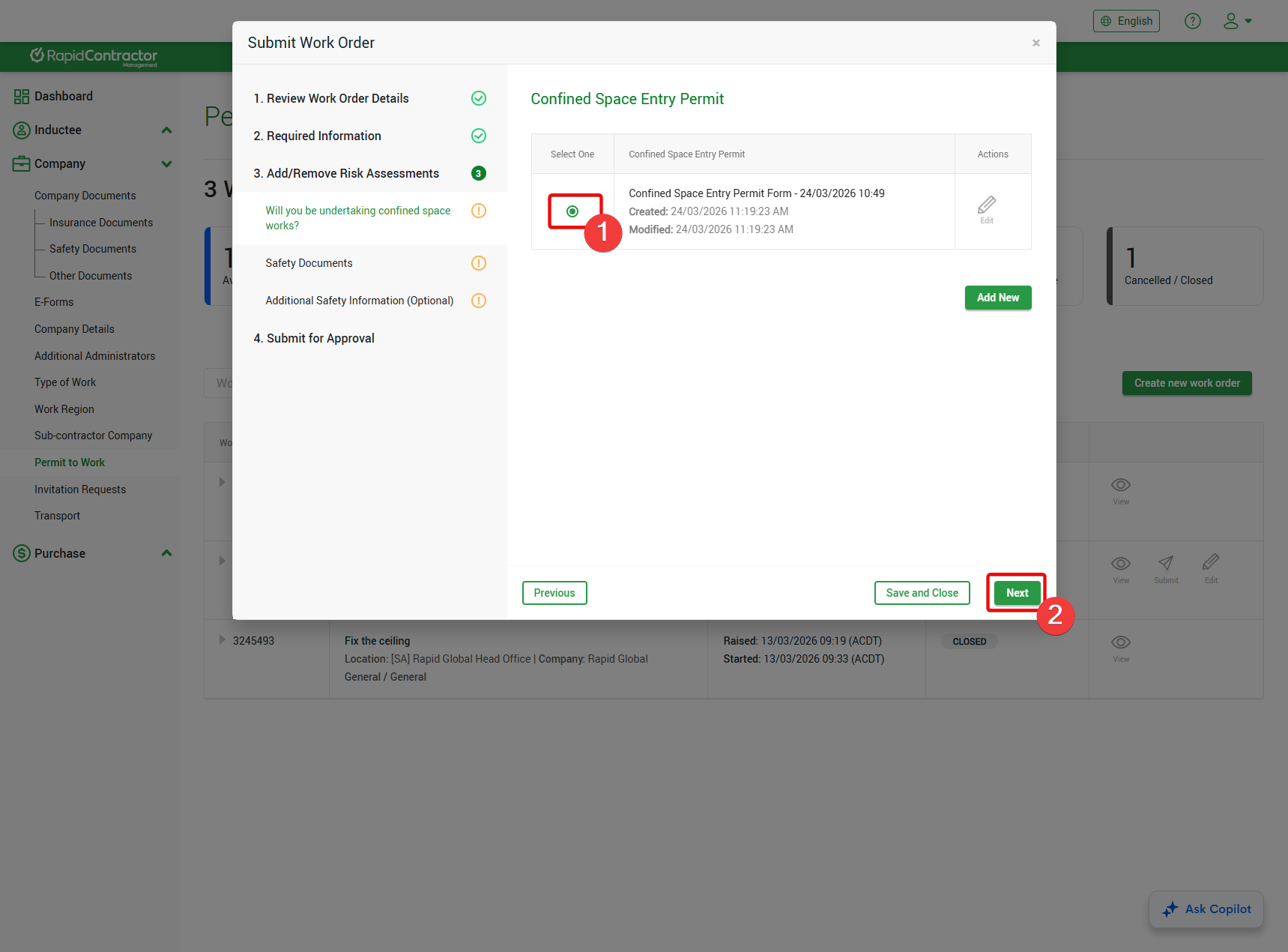
- Select the Add New button to create a permit for the high-risk work you selected on the previous page:
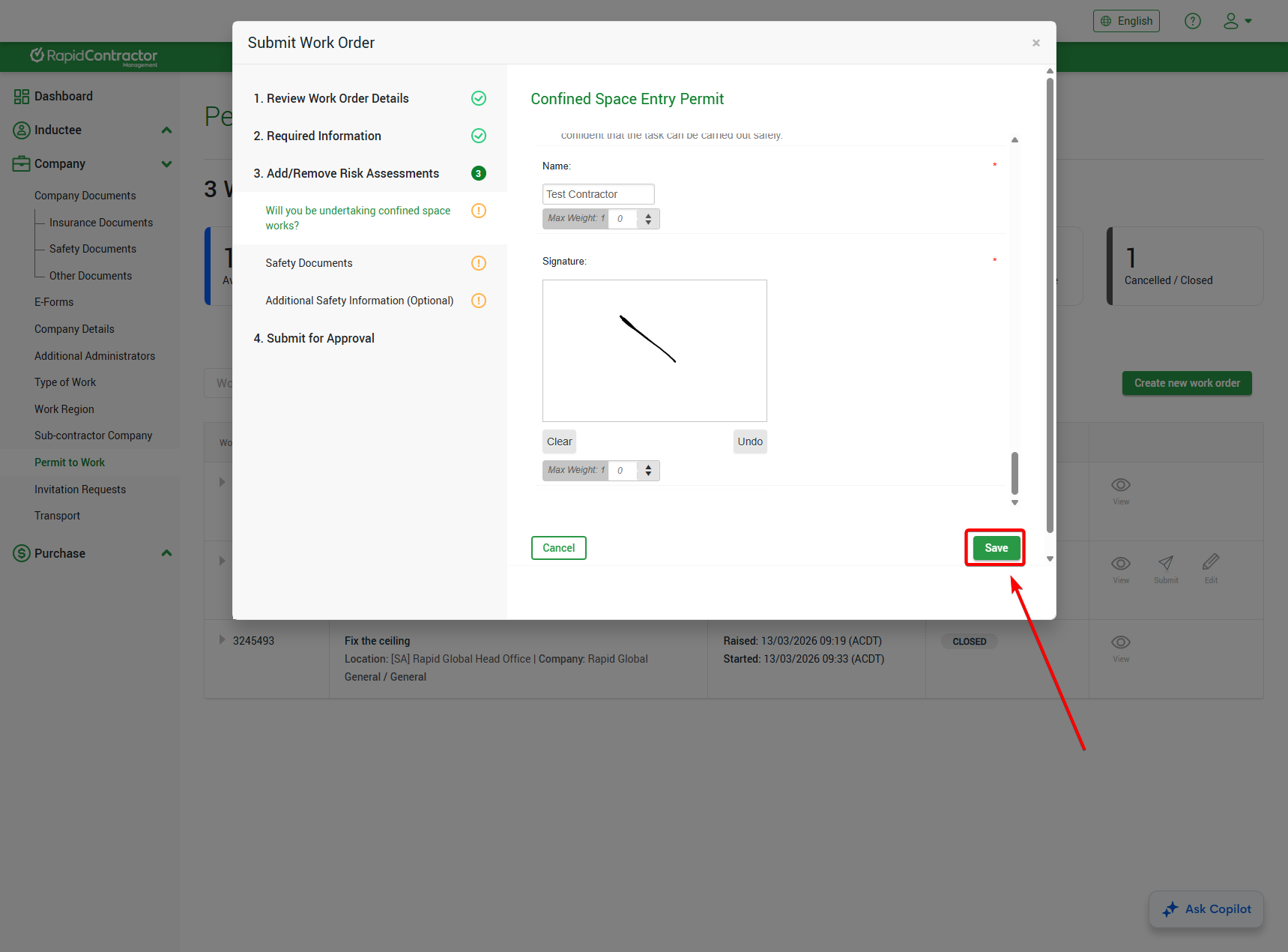
- Fill out the details of the high-risk work within the portal.
- Press the Save button:
- Ensure you select the newly created permit and press the Next button to proceed:
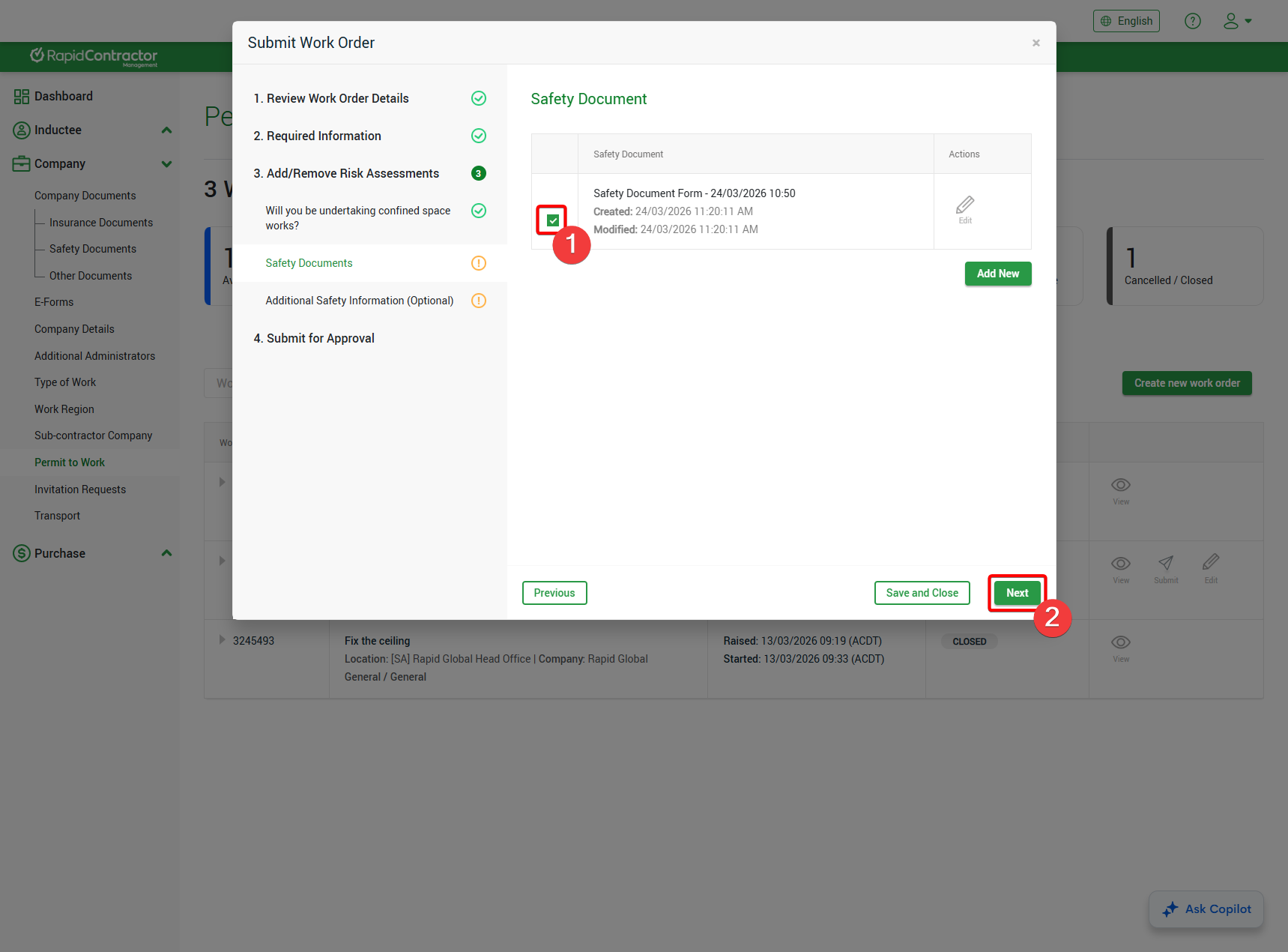
- Select the relevant Safety Document.
- Press the Next button:
- In 4. Submit for Approval, press the Finish button once you are ready to submit for approval:
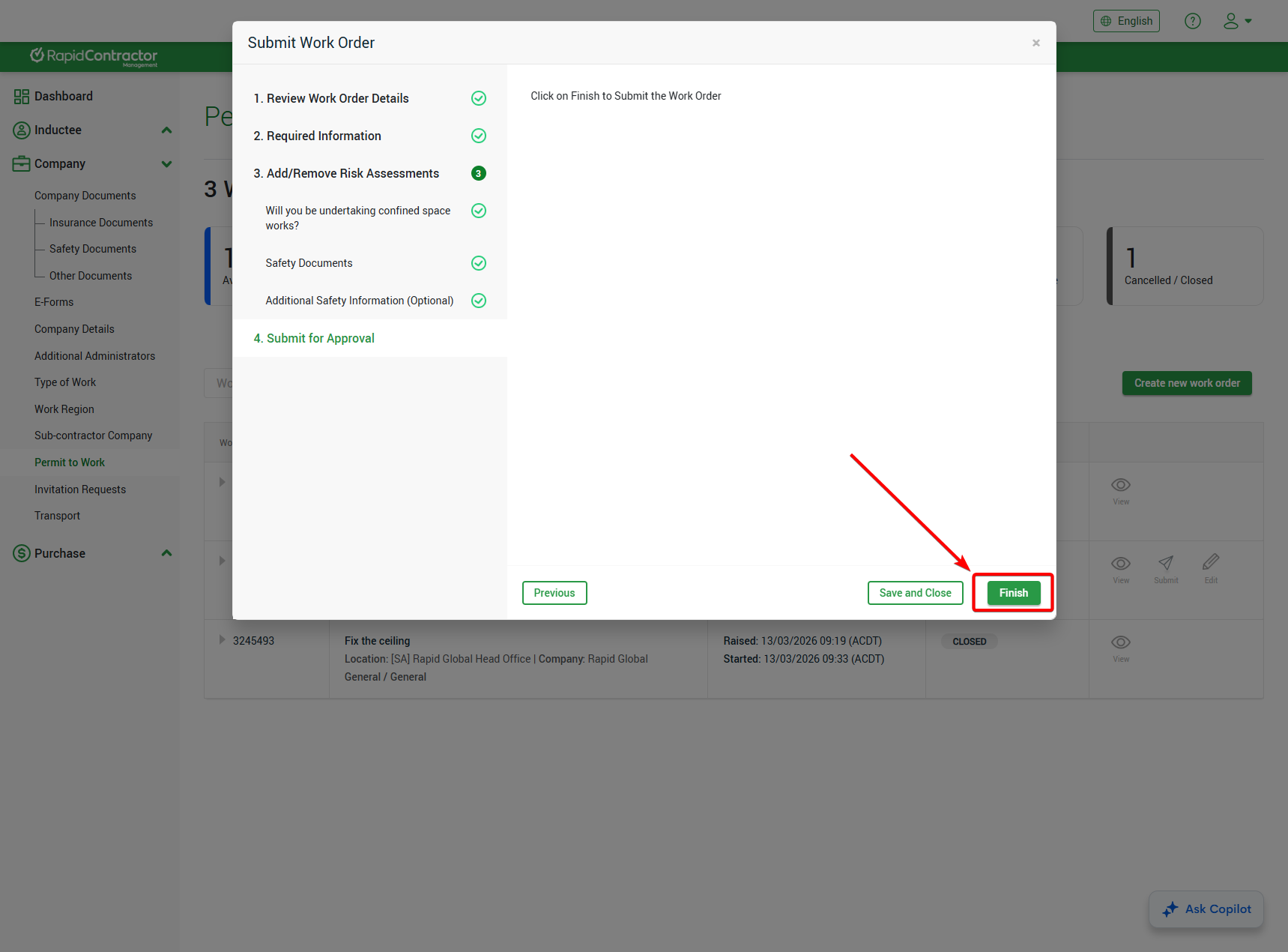
 Please note: The information displayed and the permits you are required to complete may differ from the examples shown above. This is because permit requirements are configured at a client level. If you have any questions about the information you need to complete, please contact your client representative.
Related Articles
Work Order lifecycle
This step of the Permit to Work Info Pack looks at the lifecycle of a work order, including creation, submission, and the relevant approval process. --------------------- 1. Creating a Work Order The first step of the Permit to Work process is ...
Permit to Work for Employees
This section of the Permit to Work Info Pack provides information on configuring and managing Employee-enabled Permit to Work workflows. Employee Permit to Work (PTW) allows clients to utilise the PTW module for internal staff rather than strictly ...
How do I apply for a permit?
If your client requires you to complete a permit for the work being carried out onsite, you’ll need to submit a work order that includes the required permit and all relevant details. Work orders can be submitted either during the sign‑in process or ...
Introduction to Permit to Work
This first step of the Permit to Work Info Pack provides an overview of Permit to Work, its necessity, and its workplace application. --------------------- What is Permit to Work? Permit to Work (PTW) is a module within Rapid that helps digitalise ...
How to close / cancel a work order as an administrator
If a contractor forgets to close their work order after completing the required works, an administrator can close or cancel it on their behalf from the Administrator Portal. Go to the Permit module. Open the Work Orders tab. Use the filters on the ...