How to link a permit to a permit group
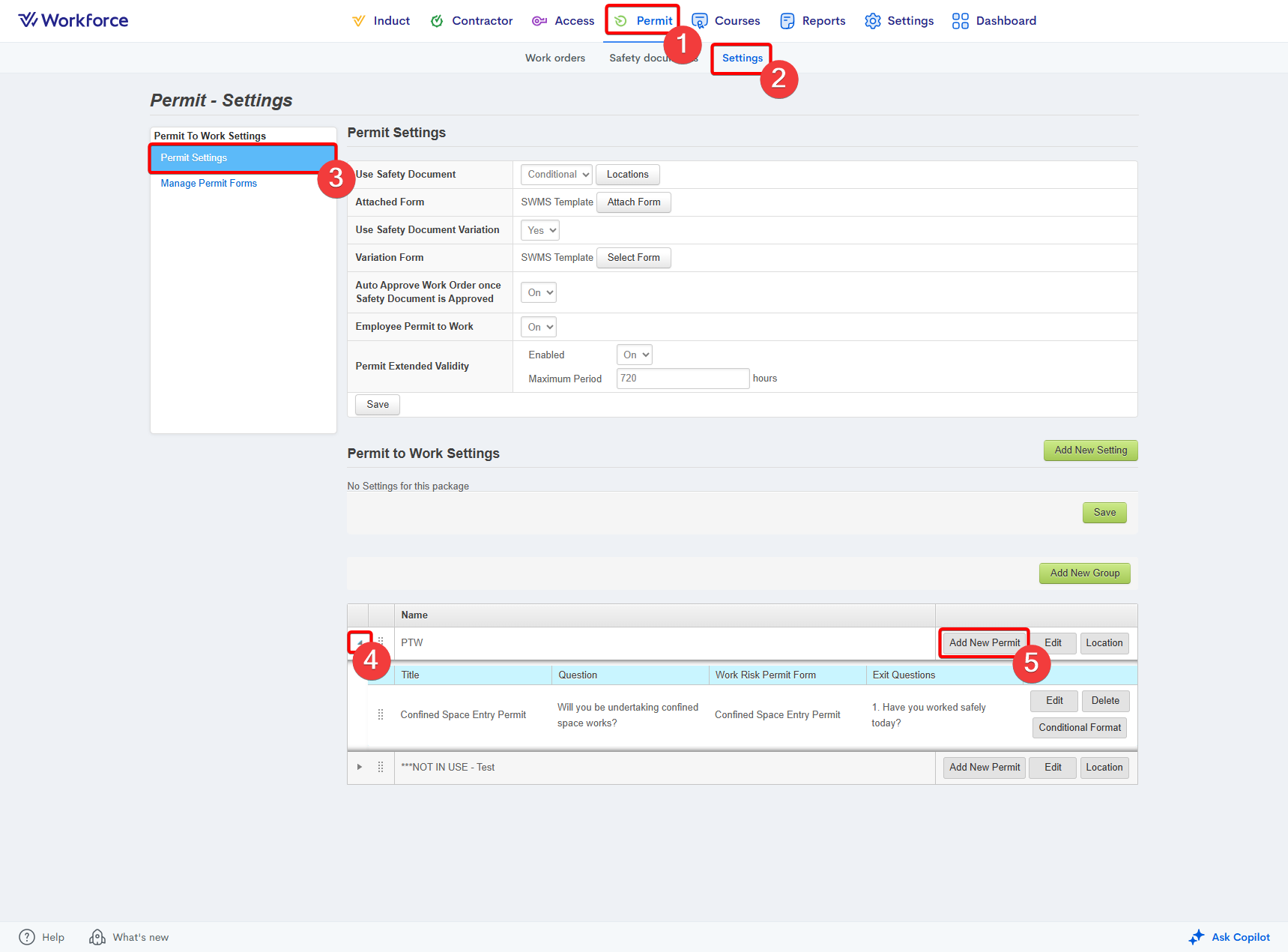
- Go to the Permit module.
- Select the Settings section.
- Enter the Permit Settings area.
- At the bottom of the page, press the right-facing arrow to drop down the relevant permit group to confirm it's the correct group.
- Press the Add New Permit button to the right of the permit group name:
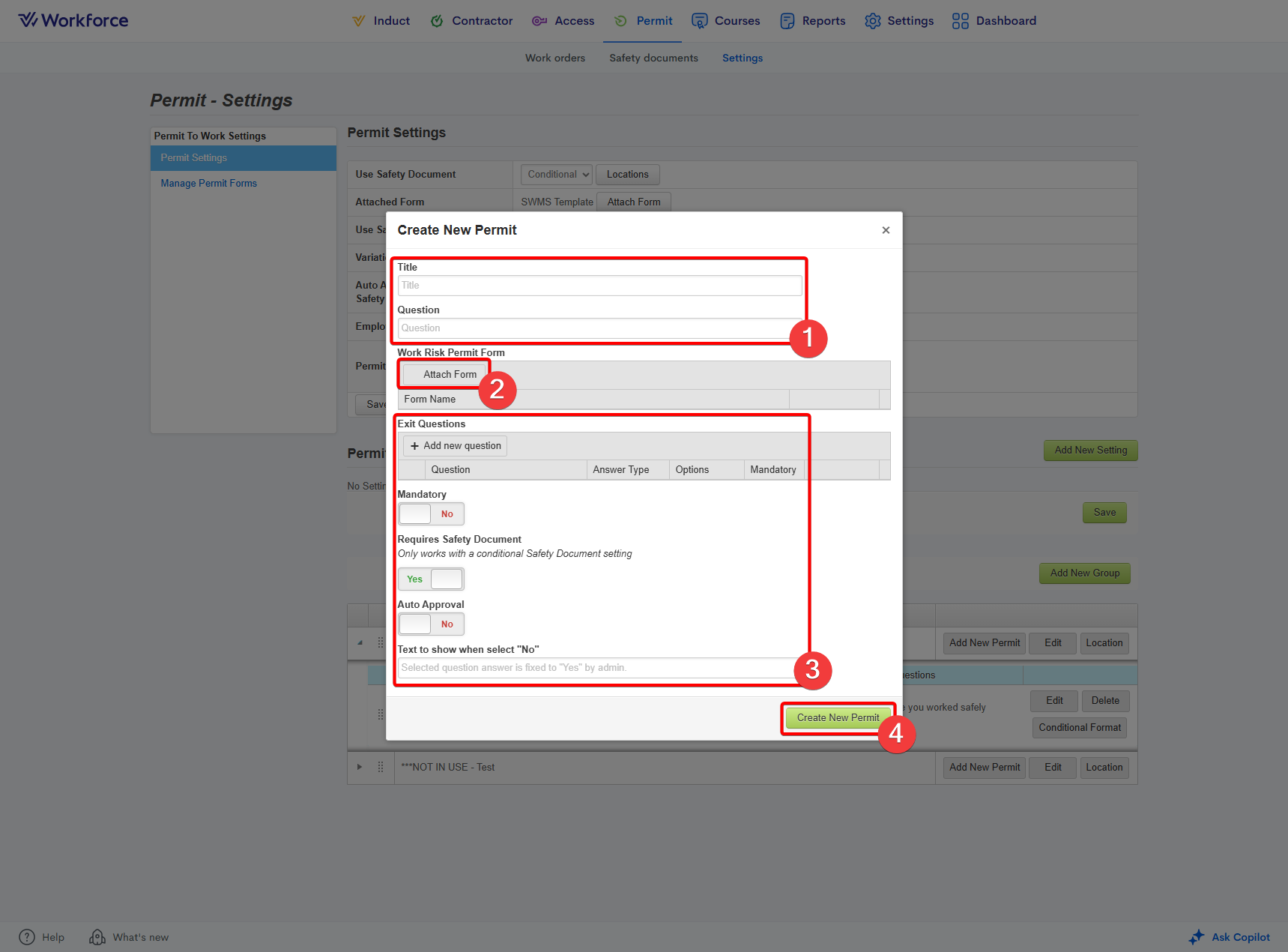
- Enter the title of the permit and the question to ask the user during submission.
- Attach the relevant permit form using the Attach Form button.
- Fill the remaining sections based on your requirements.
- Press the Create New Permit button:
Related Articles
What is a permit group?
A permit group is a feature within the Permit to Work module that lets you define a set of sign‑on questions workers must answer when submitting a work order. These questions relate to the type of high‑risk work being carried out onsite. If a worker ...
How to create exit questions within a permit group
Go to the Permit module. Enter the Settings tab. Select the Permit Settings option: Scroll down to the bottom of the page. Within the table, press the right-facing arrow to the left of the relevant permit group. Press the Edit button to the right of ...
Form Builder overview for Permit to Work
This next step of the Permit to Work Info Pack provides an overview of Form Builder and its integral role in the Permit to Work system. --------------------- What is form builder and what is it’s use case? Form Builder is the internal Workforce ...
Permit to Work approvers & notifications
This step of the Permit to Work Info Pack looks at setting up notifications and approvers and the best approach with how to manage. Both steps are crucial to a well-functioning Permit to Work system. --------------------- Approvers Permit approvers ...
Permit groups
This step of the Permit to Work Info Pack covers how to set up permit grouping to set certain for Permit to Work workflows for different sites. The Permit Groups feature is the engine behind the interactive Risk Assessment screen that workers ...